
Beginner Friendly Self Hosted One-Time Purchase

Launch Your Own AI Content Studio in Minutes - No Coding Required

Create videos, images, voice, and music while tracking costs, managing projects, and organizing assets in one streamlined system.

🎬 Video • 🖼️ Image • 🎤 Voice • 🎵 Music
5-Minute Setup

"Replace Midjourney, ElevenLabs, Runway, and your asset workflow - with one system you own."

"Launch your own AI-powered content studio - generate, organize, and produce full series with consistent characters."

"Stop paying for 5 AI tools. Run your own studio."
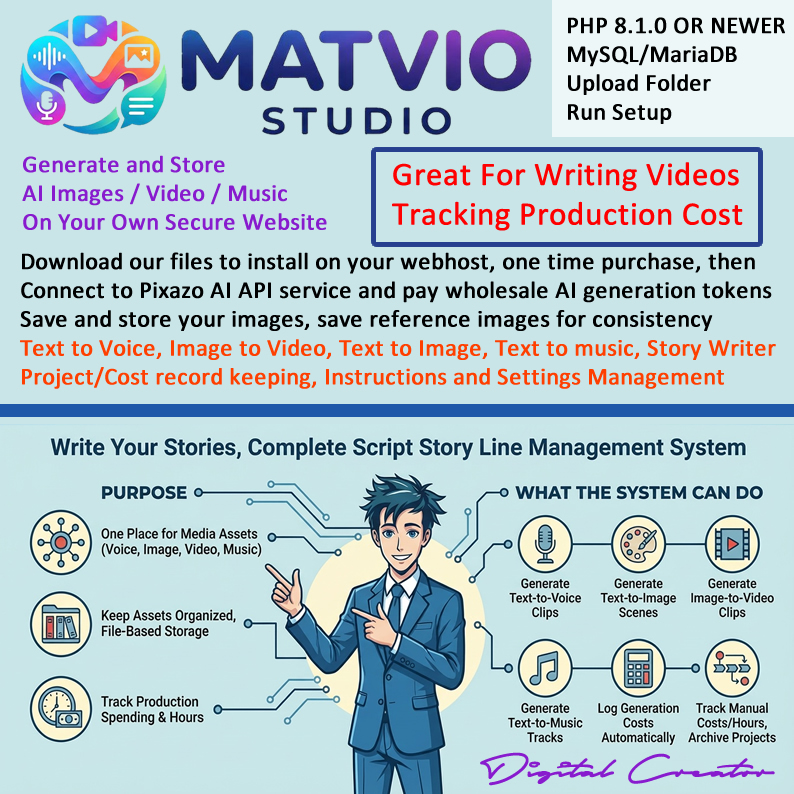
MATVIO STUDIO for Original Series Production

MATVIO STUDIO is a creative production workspace built to organize and protect your original voice, image, and video assets in one place. It helps production teams keep series materials structured, searchable, and ready for fast publishing workflows.

The platform also generates new assets from AI prompts, so you can move from concept to finished scenes with consistent characters, reusable references, and trackable video codes for local storage and delivery across your custom original series programs.

Everything You Need in One Powerful Studio

Creators choose MATVIO STUDIO because it combines generation, organization, and budgeting in one reliable workflow.

⚙️
  • All-in-One Studio: Video, Image, Voice, Music
  • Track Costs & Projects: Automatic + manual logging
  • Organized Workflow: Save prompts, characters, references
  • Easy Setup: Upload, run install.php, enter DB info
🗂️ 💵 📚 🛠️

Built for creators who want a clean production pipeline without scattered tools, spreadsheets, or storage chaos.

5-Minute Setup - No Coding Required

From upload to first generation in a few quick steps.

1
Upload folder to hosting (cPanel / FTP)
2
Run install.php in your browser
3
Enter database info and admin login
4
Add API keys: Pixazo, Groq
5
Start creating content immediately
Start Your Studio →

Generate, Organize, and Track All Your Content

One studio for production, prompt management, and project continuity.

🎤 Text-to-Voice
🖼️ Text-to-Image
🎬 Image-to-Video
🎵 Text-to-Music
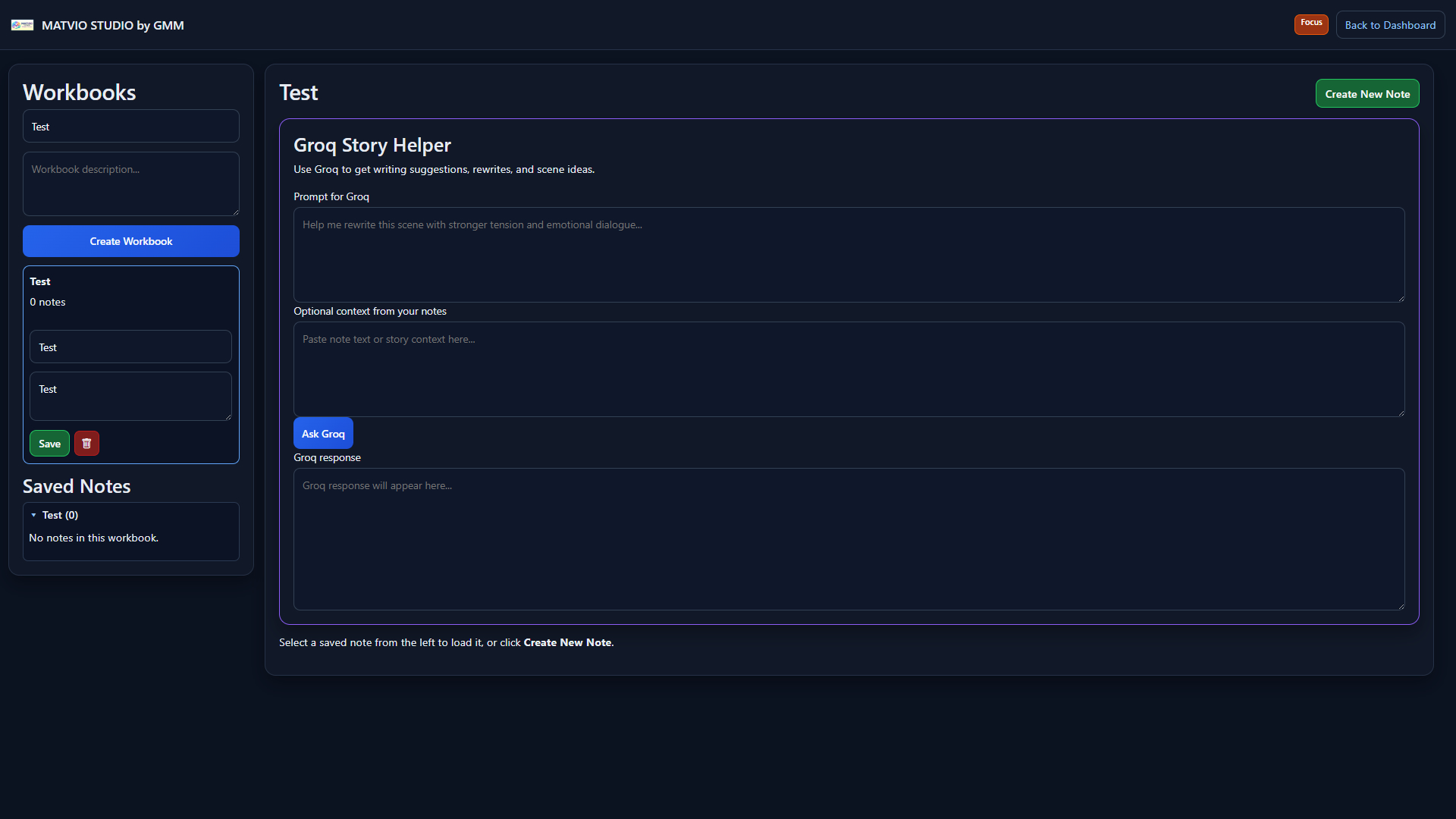
📓 Storyline Builder + AI Prompts
🧠 Prompt & Character Library
Start Creating →

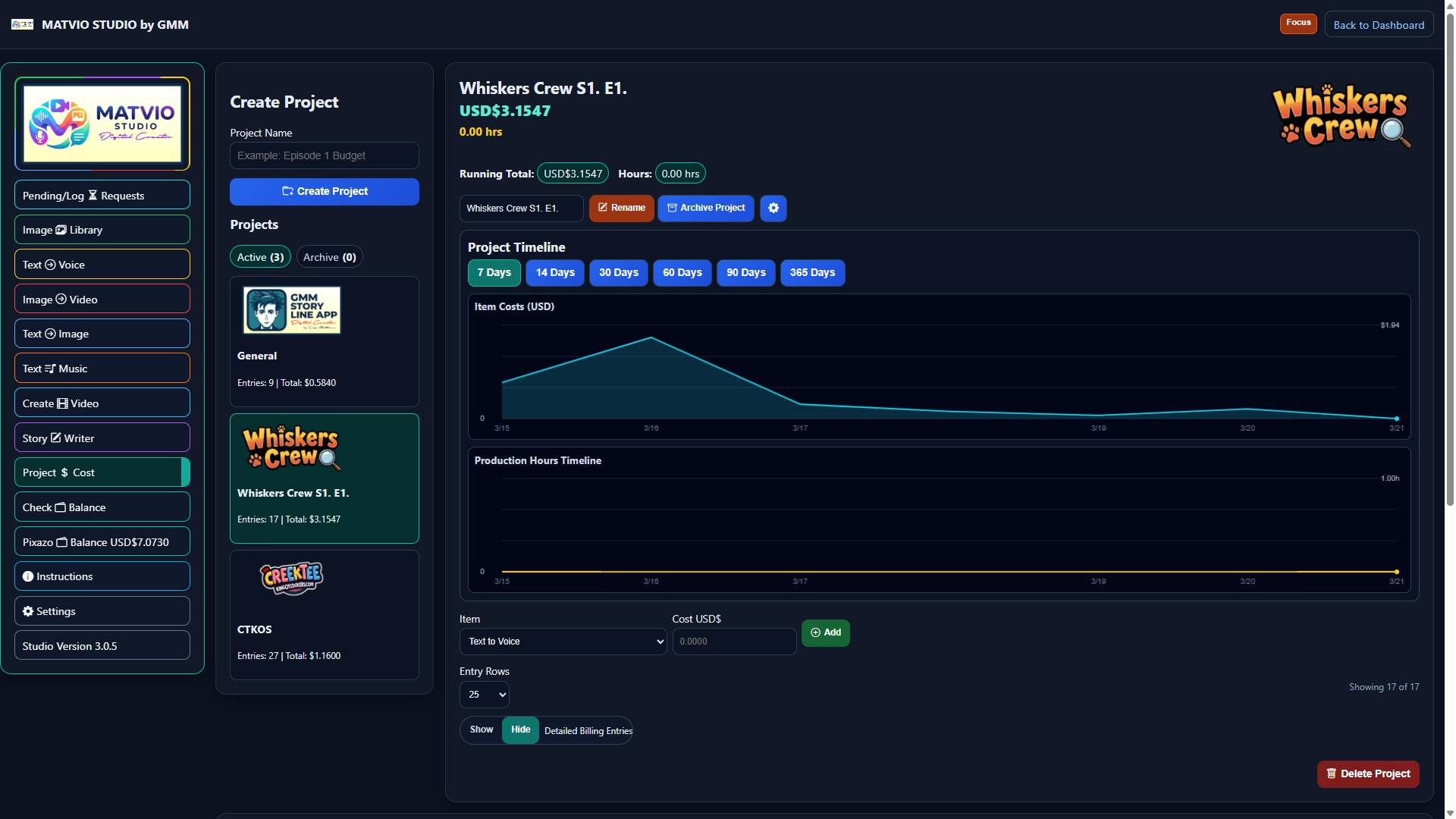
Know What Each Project Costs Before You Scale

  • Automatic AI generation cost logging
  • Manual production cost and hours tracking
  • Project-level budgeting dashboard
  • Timeline analytics for production decisions
  • Archive projects safely with full history
Download Now →
MATVIO STUDIO cost dashboard and timeline analytics

Integrates With Industry-Leading AI Platforms

Connect your favorite generation models and keep everything coordinated in one production environment.

Pixazo - Text-to-Image & Image-to-Video
ElevenLabs - AI Text-to-Voice
Groq - Storyline & Prompt Assistant
Kling - Image-to-Video Animation
Lyria - Text-to-Music Generation
Nano Banana / Seedream / Flux - Character Consistency
Get Started Today →

Ready to Run on Standard Hosting

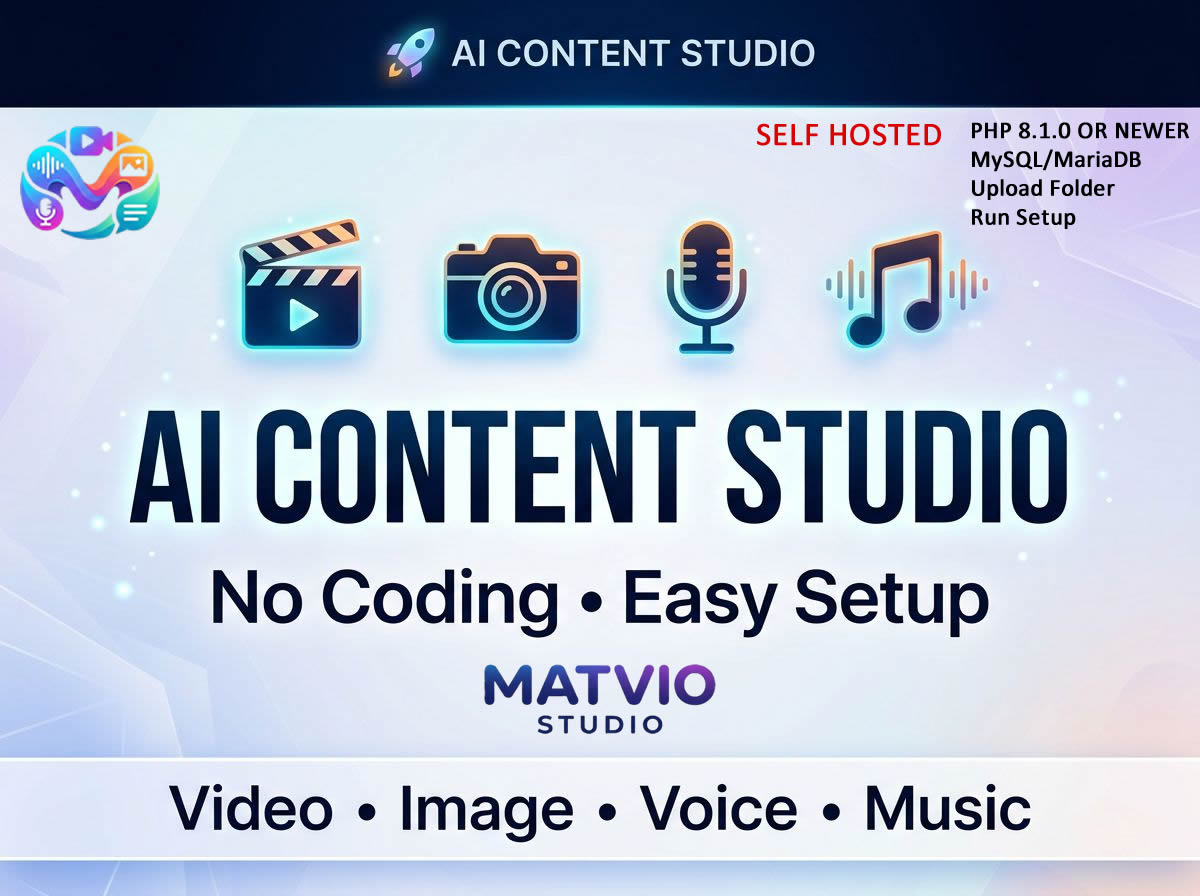
  • PHP 8.1.0+ (tested on 8.3.27)
  • MySQL / MariaDB
  • Extensions: pdo, pdo_mysql, curl, mbstring, json, fileinfo, openssl
  • Write permissions for media folders under /gmm/sla/
🐘 🛢️ ⚙️ 🔐

License: Personal and business use allowed. Resale prohibited. Digital download only.

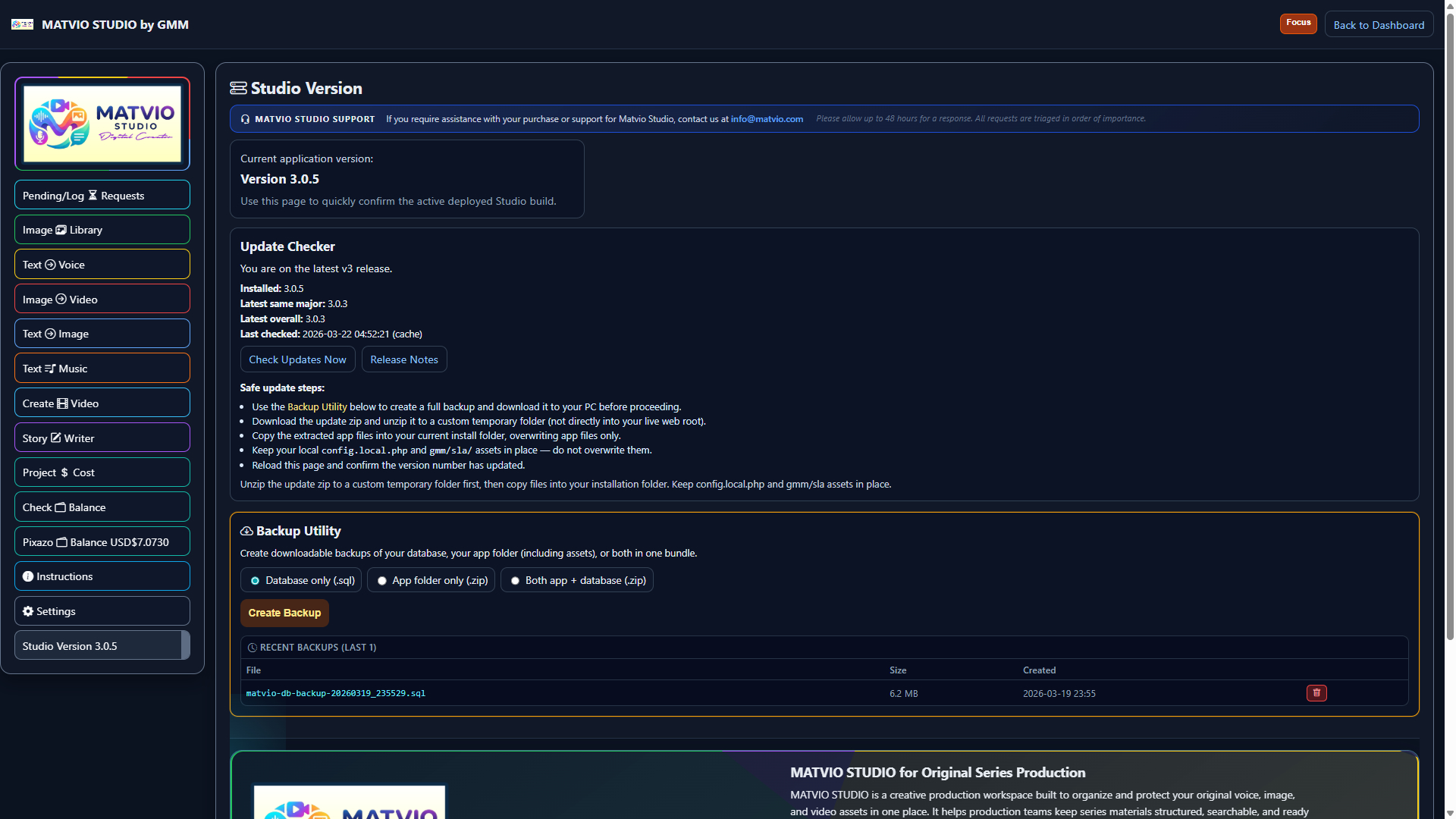
Updates: Version updates are included and checked automatically inside the program. Future major releases are available to existing users at discounted pricing.

Download MATVIO STUDIO →

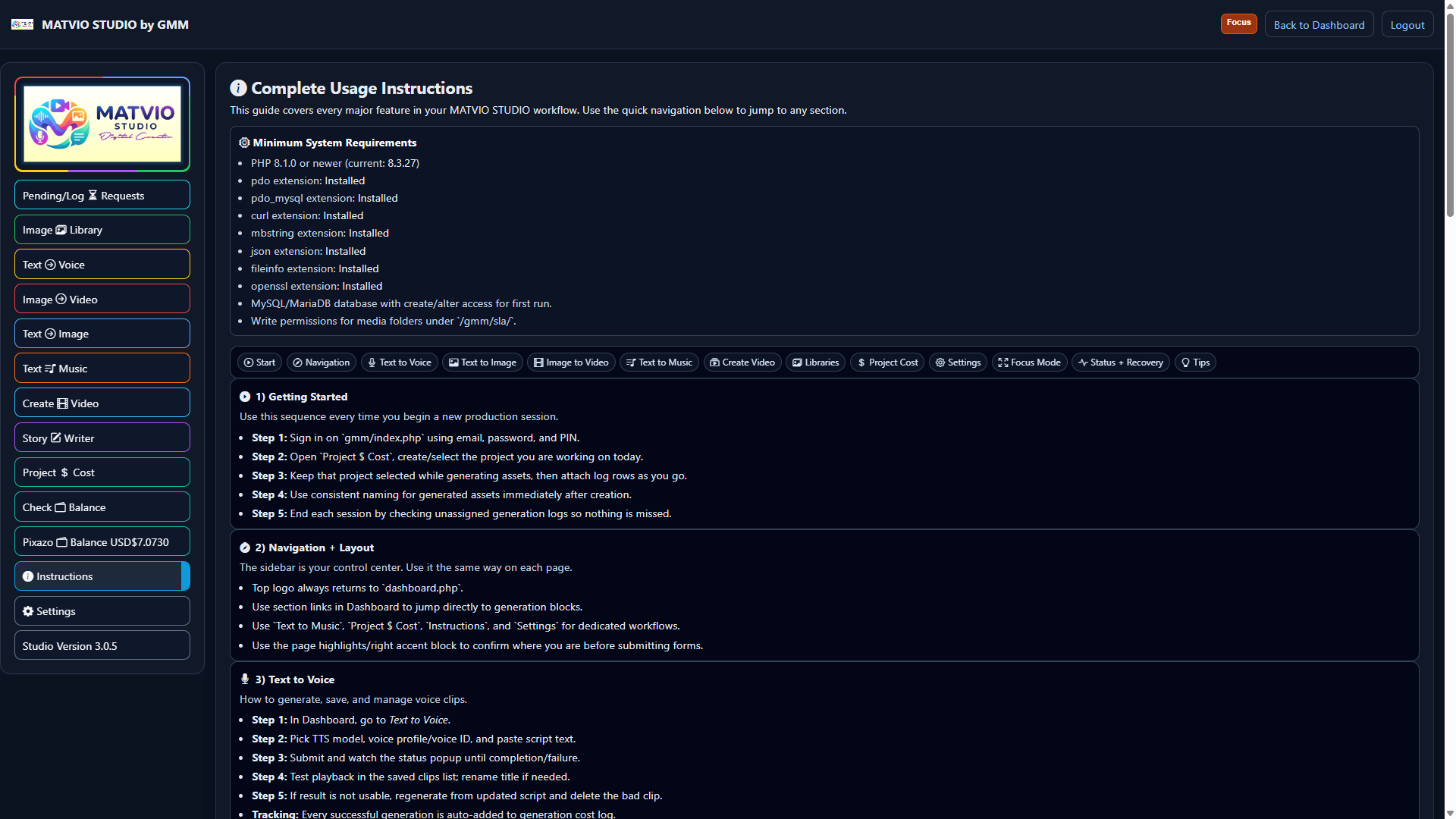
Instructions - How To Use MATVIO STUDIO

Complete production workflow guide for setup, generation, organization, cost tracking, and recovery.

Getting Started Navigation + Layout Voice / Image / Video / Music Project Cost Settings + Admin Best Practices
1) Getting Started

Use this sequence every time you begin a new production session.

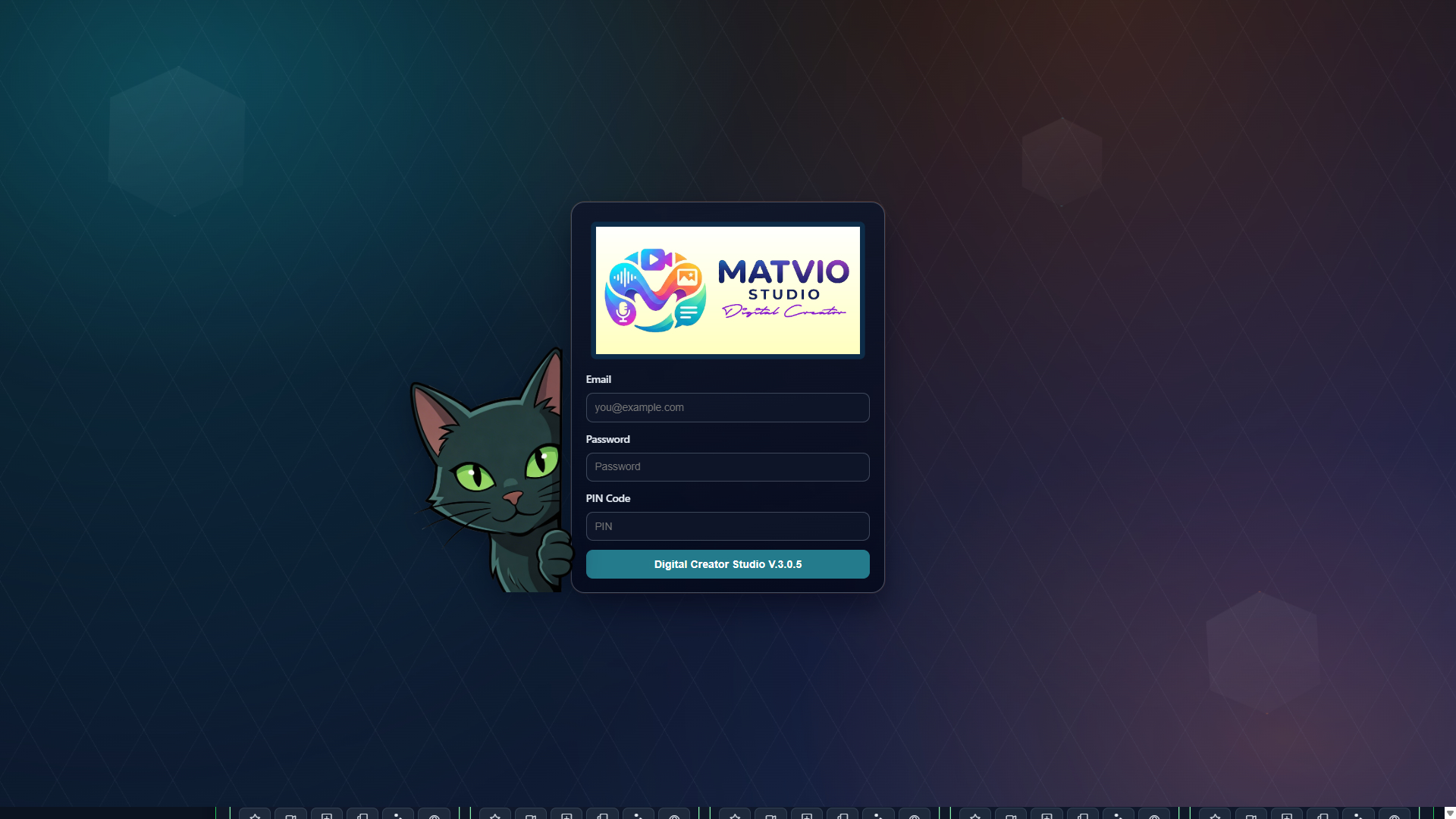
  1. Sign in on gmm/index.php using email, password, and PIN.
  2. Open Project $ Cost, then create/select the project you are working on today.
  3. Keep that project selected while generating assets, then attach log rows as you go.
  4. Use consistent naming for generated assets immediately after creation.
  5. End each session by checking unassigned generation logs so nothing is missed.
2) Navigation + Layout

The left sidebar is the control center on the Dashboard and most app pages. Each main link has a colored border matching that workflow (Voice = yellow, Image-to-Video = red, Text-to-Image = blue).

Top bar (Dashboard)

  • Update / Upgrade badge (when shown): opens Studio version to read release notes.
  • Load: server load average (1 / 5 / 15 minute).
  • Disk: used vs total on the main media disk.
  • Free: free space on that disk.
  • PHP: current / peak memory vs PHP limit.
  • OPcache: bytecode cache on/off, hit rate, memory use.
  • Additional storage chips show usage per media area.
  • Logout ends your session.

Focus mode

Use the Focus button in the account row on supported pages for less UI chrome and hidden scrollbars. Exit with Exit Focus in the sidebar or Esc.

Sidebar links

  • Pending/Log Requests: combined queue and session log; use Stop to cancel pending jobs.
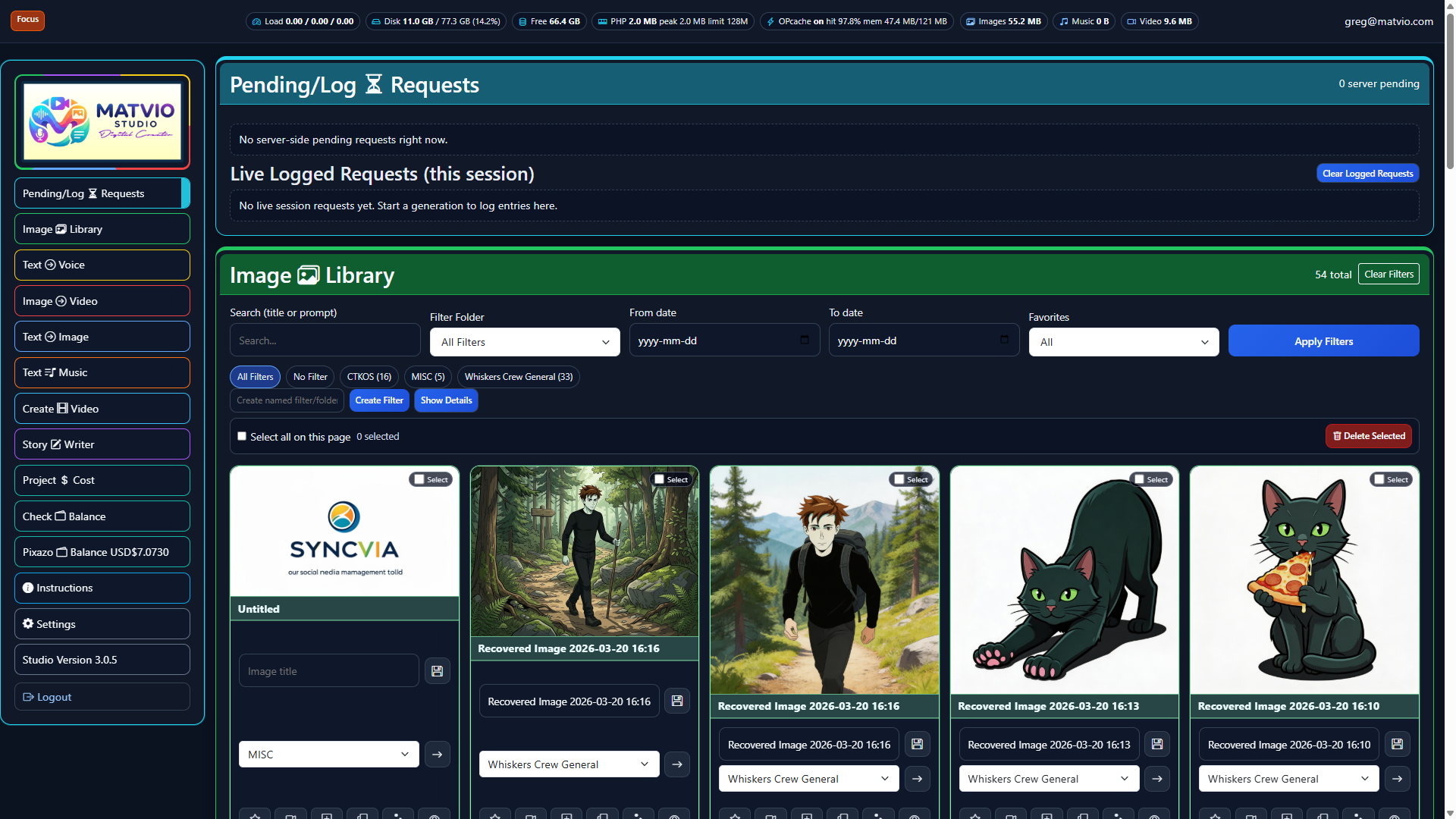
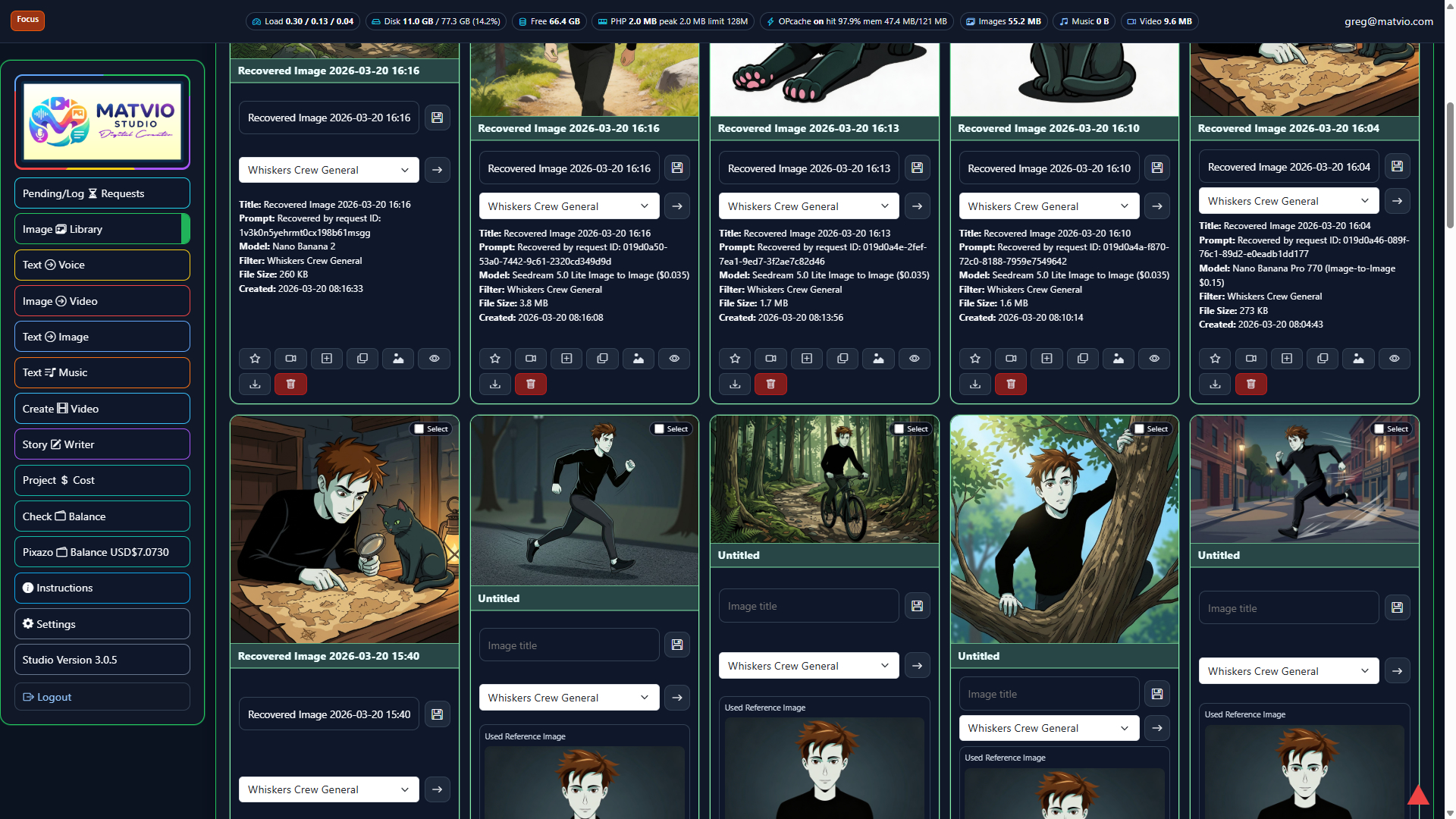
  • Image Library: saved stills, filters, favorites, bulk actions.
  • Text to Voice: Generate Voice, Pending Jobs, Saved Voices.
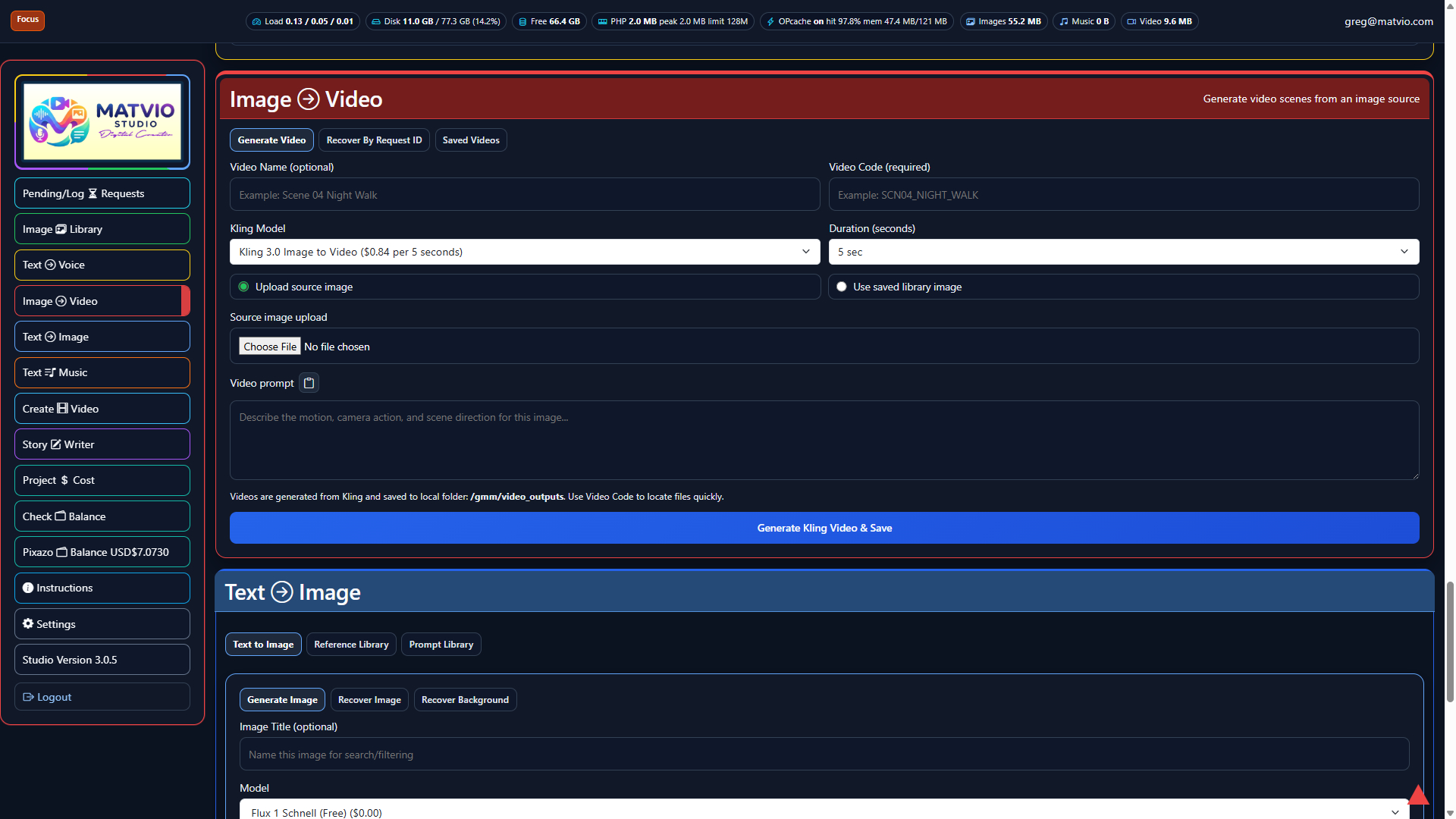
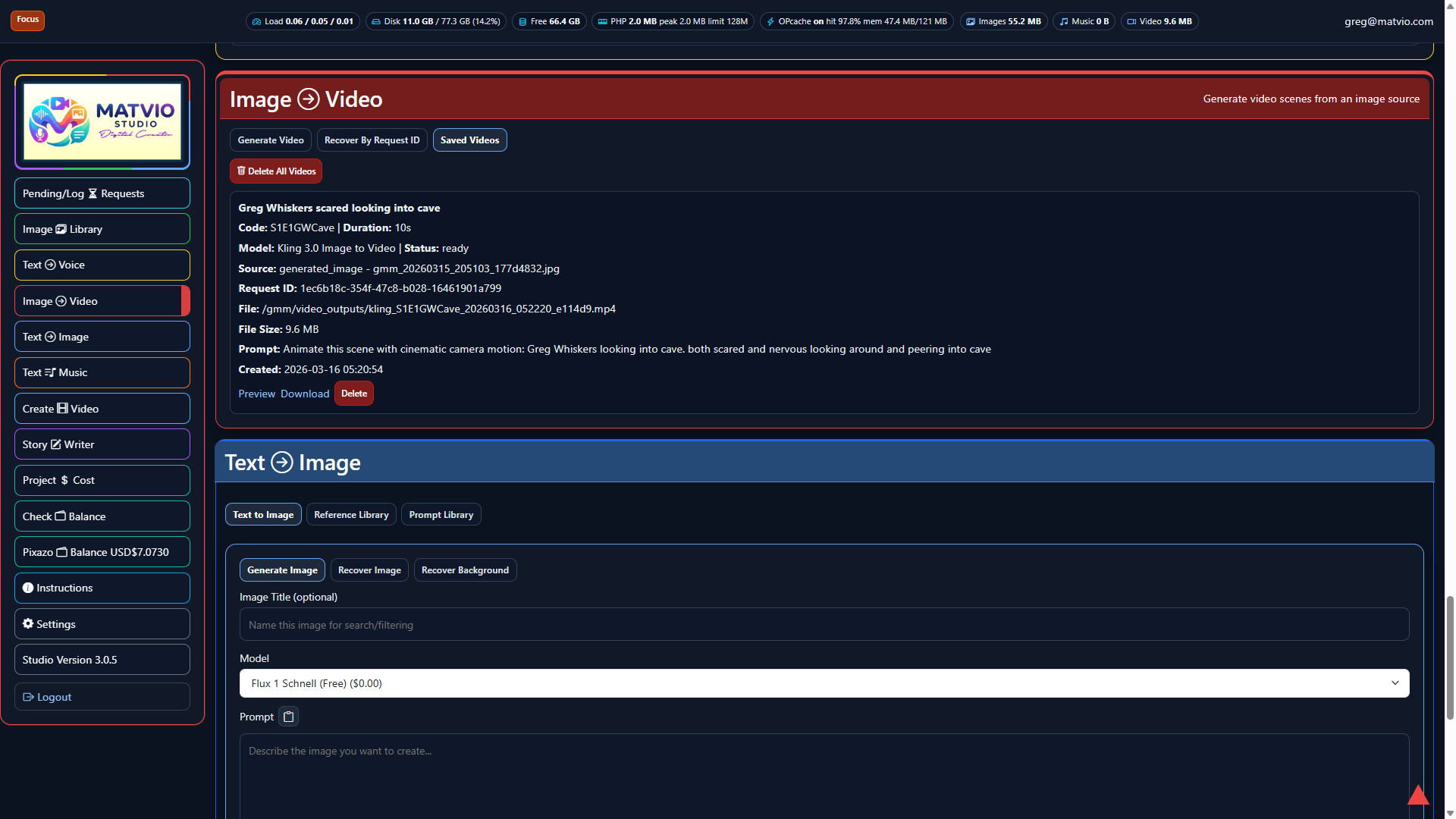
  • Image to Video: Generate Video, Recover By Request ID, Saved Videos.
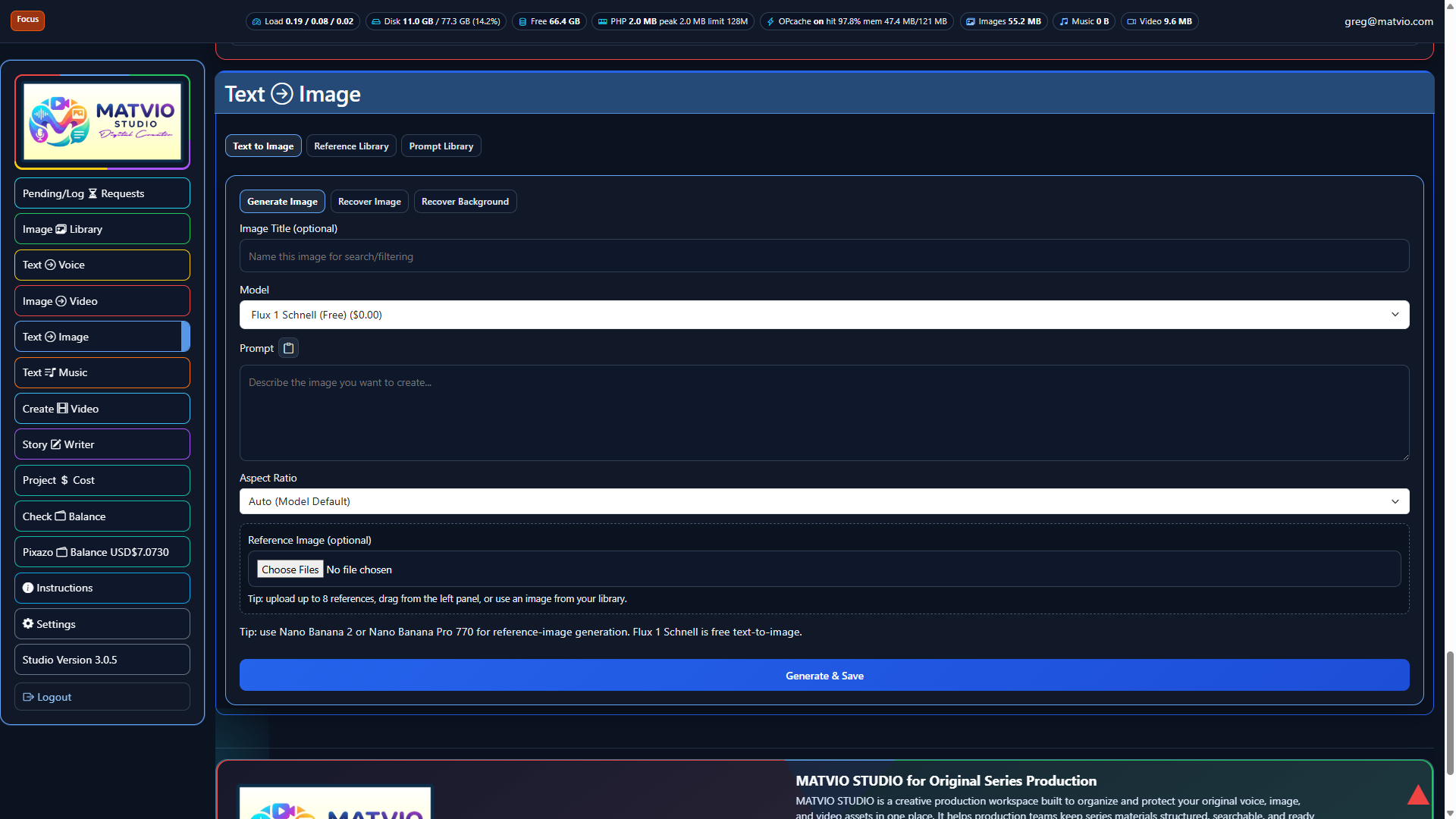
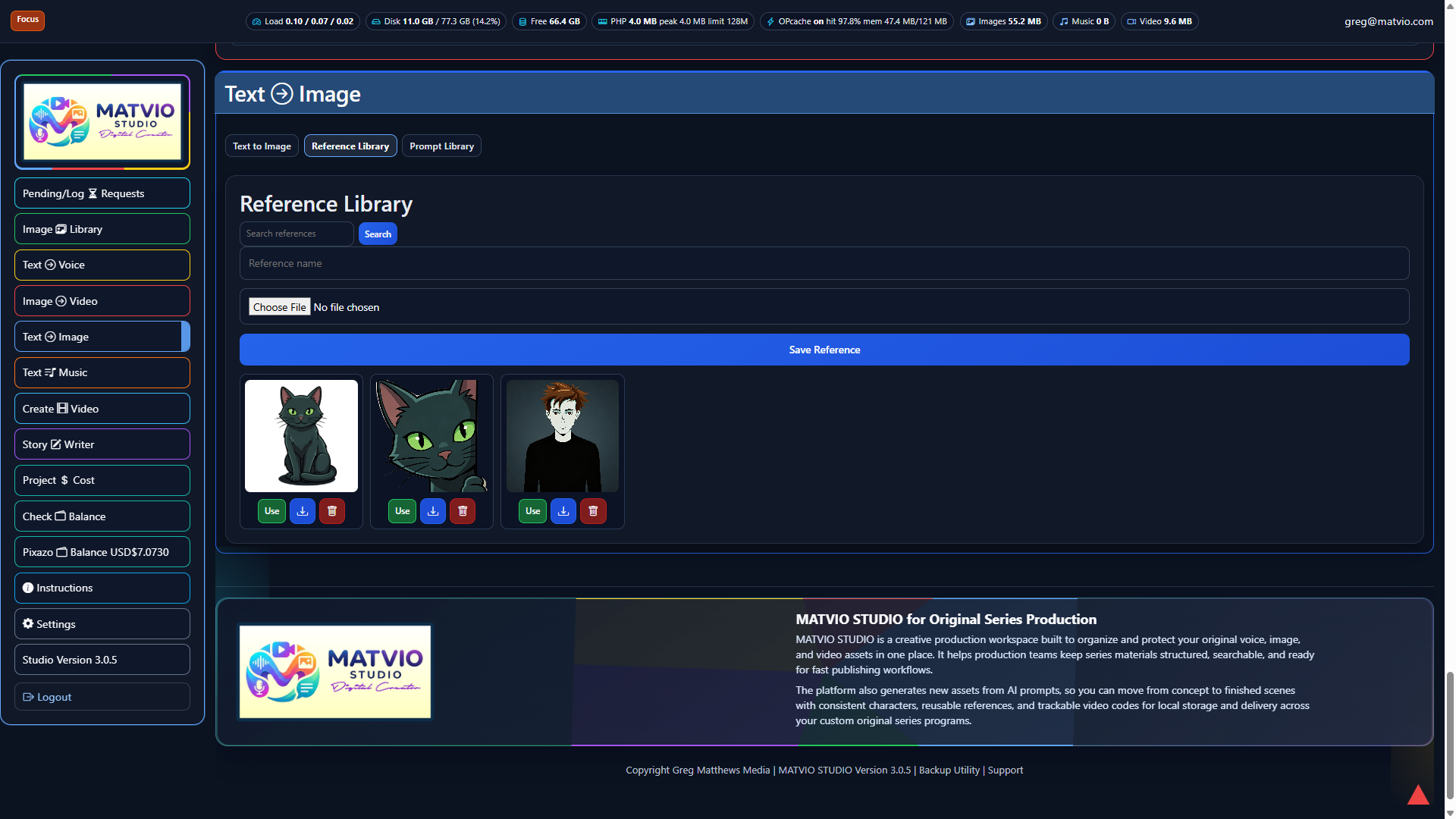
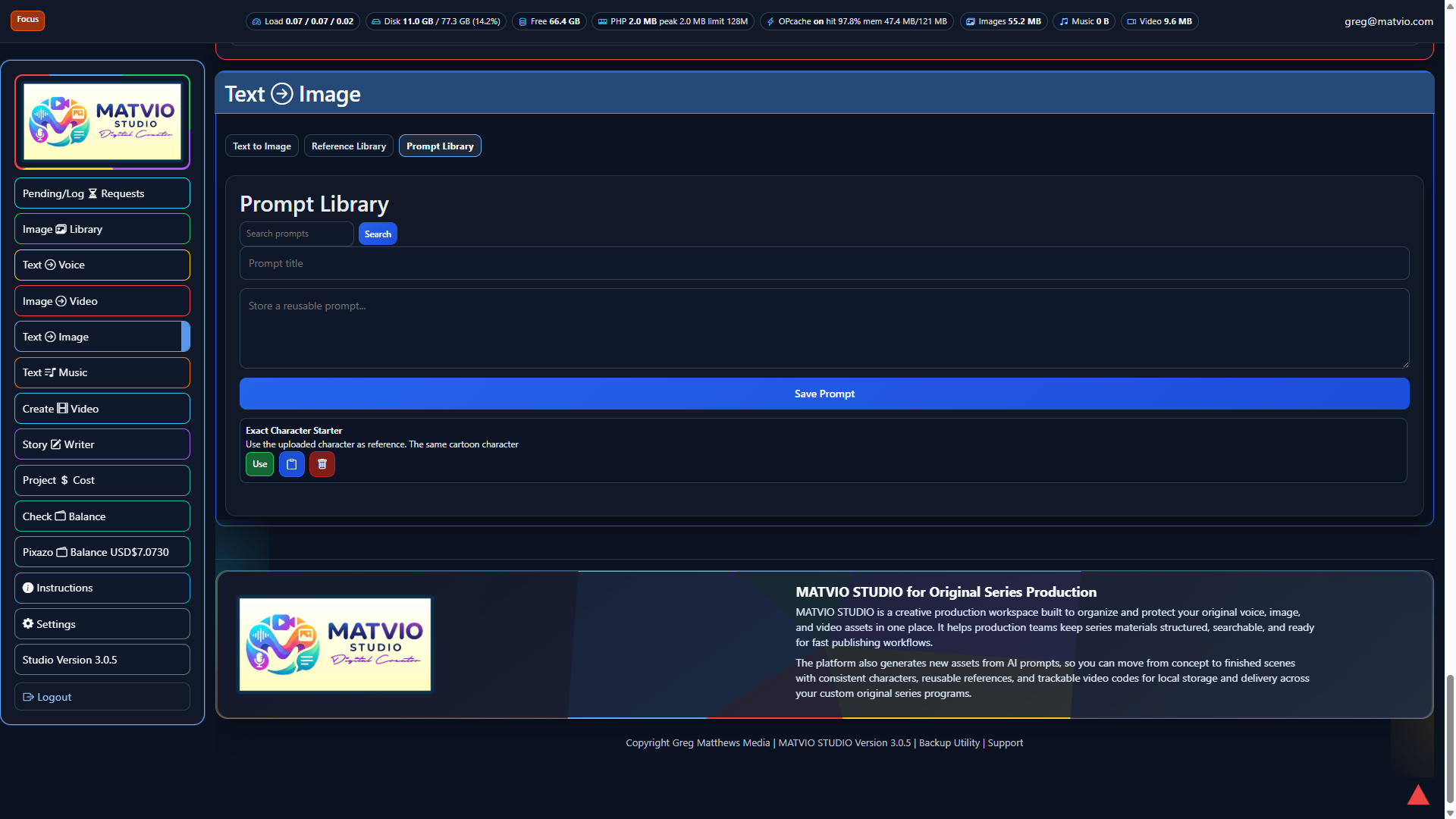
  • Text to Image: Generate Image, Reference Library, Prompt Library, Recover Image, Recover Background.
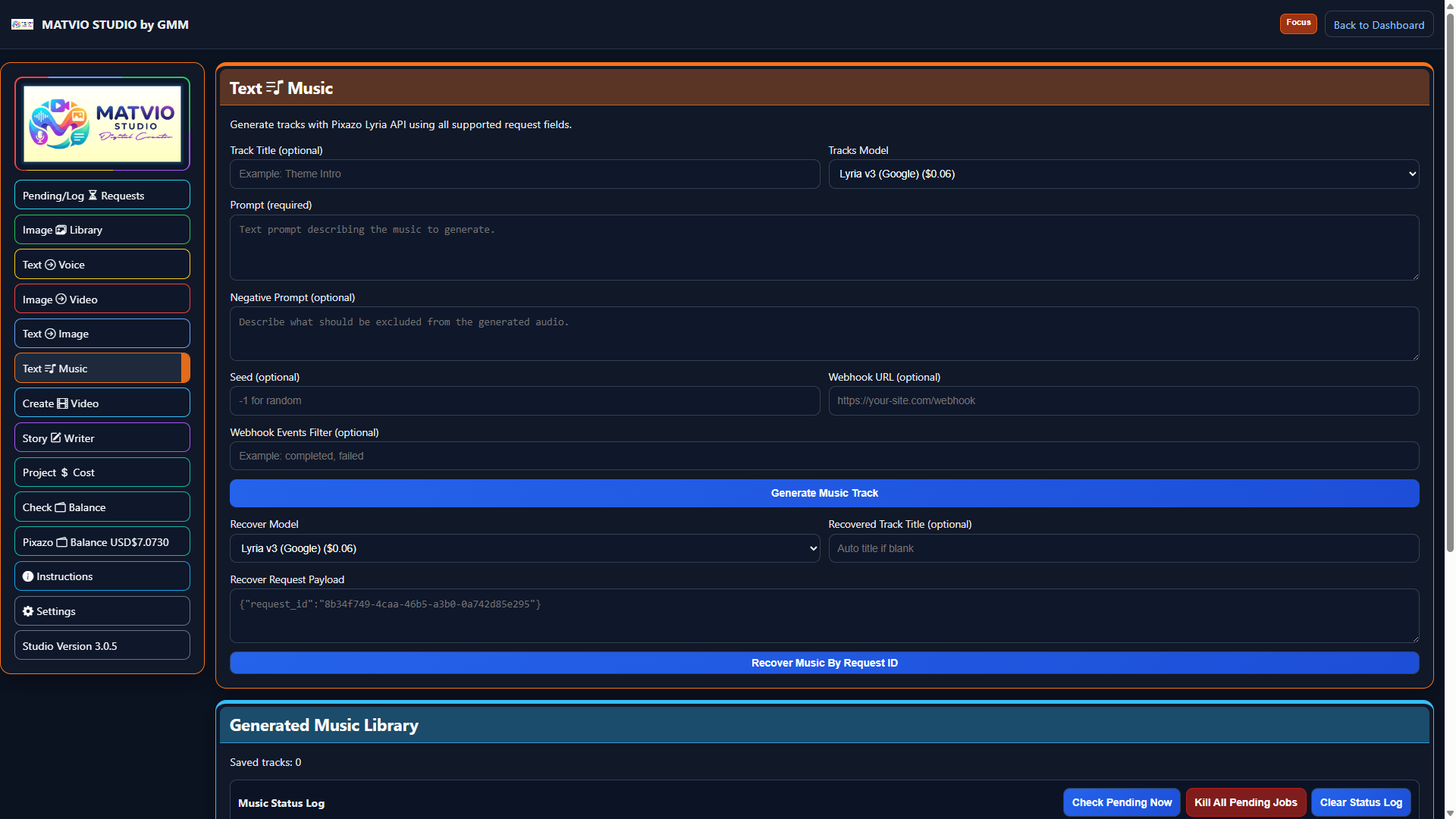
  • Text to Music: opens music.php.
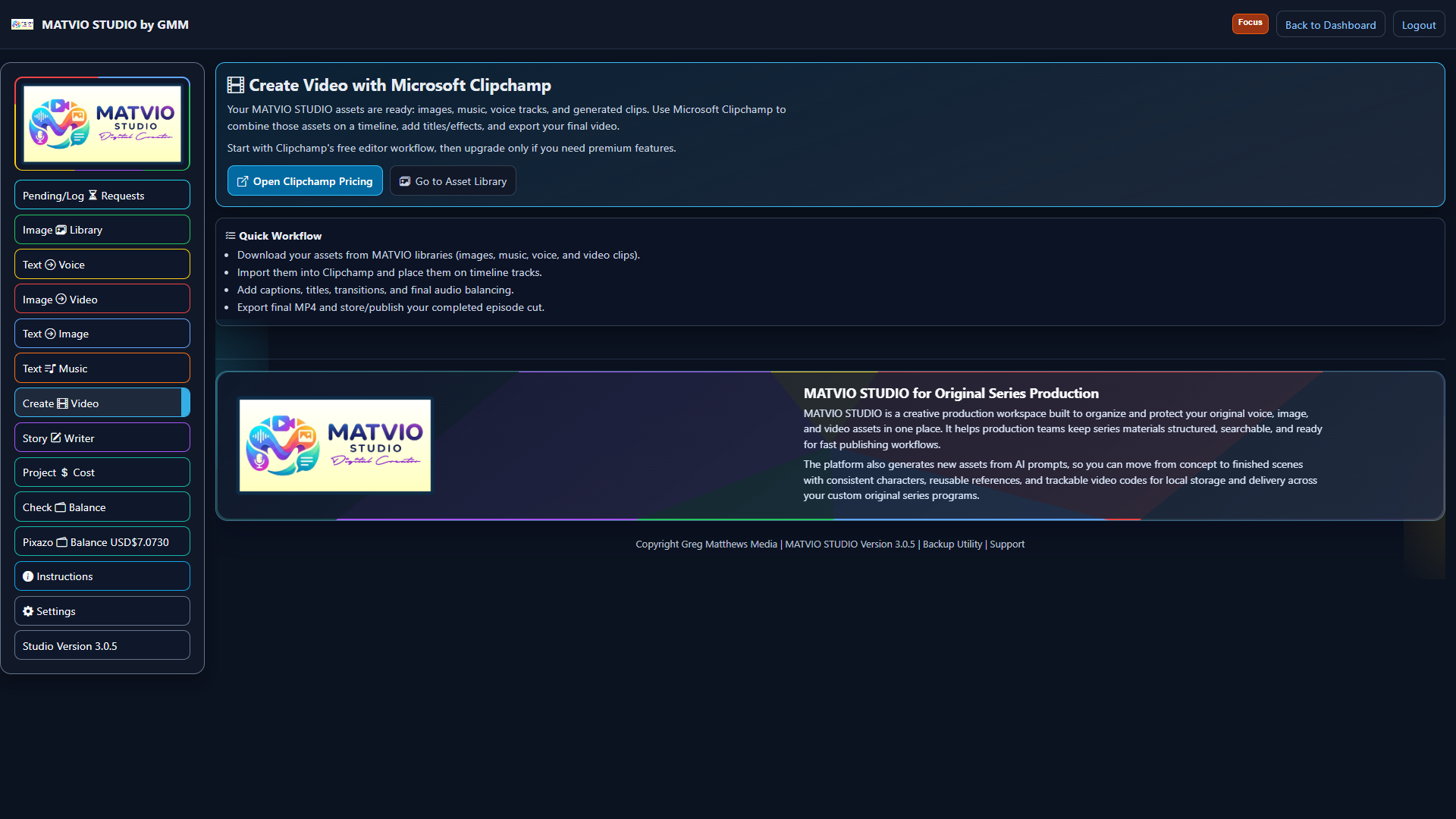
  • Create Video: timeline editor and MP4 export (video-editor.php).
  • Story Writer, Project $ Cost, Check Balance, Instructions, Settings, Studio version utilities.

Tip: Click the Matvio logo at the top of the sidebar to return to Dashboard. Only one expandable group remains open at a time.

3) Text to Voice

Open Text to Voice on the Dashboard.

Tabs

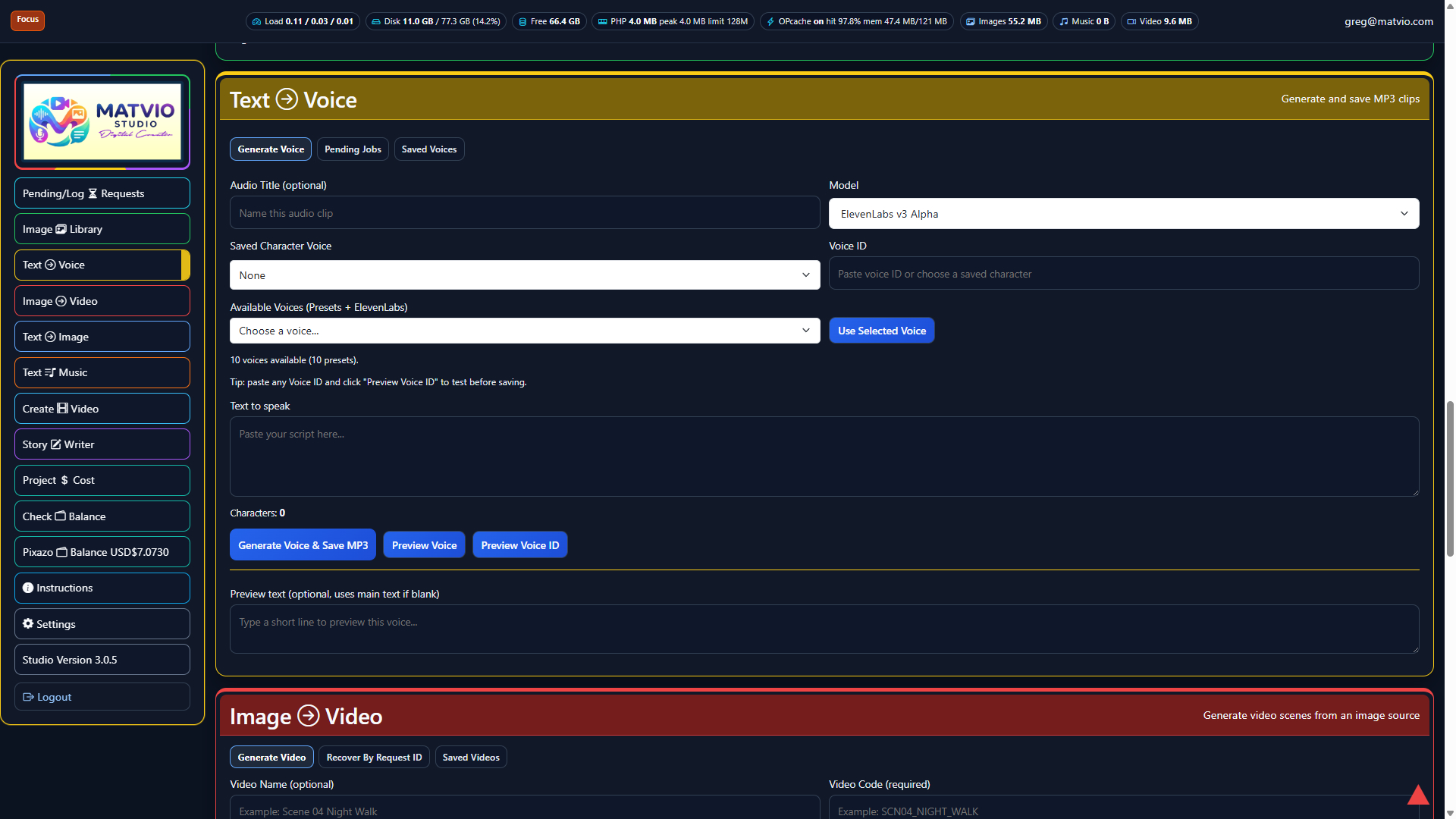
  • Generate Voice: model, saved character, Voice ID, preset list, script, character counter.
  • Pending Jobs: async rows still at the provider; use Check Now to poll status.
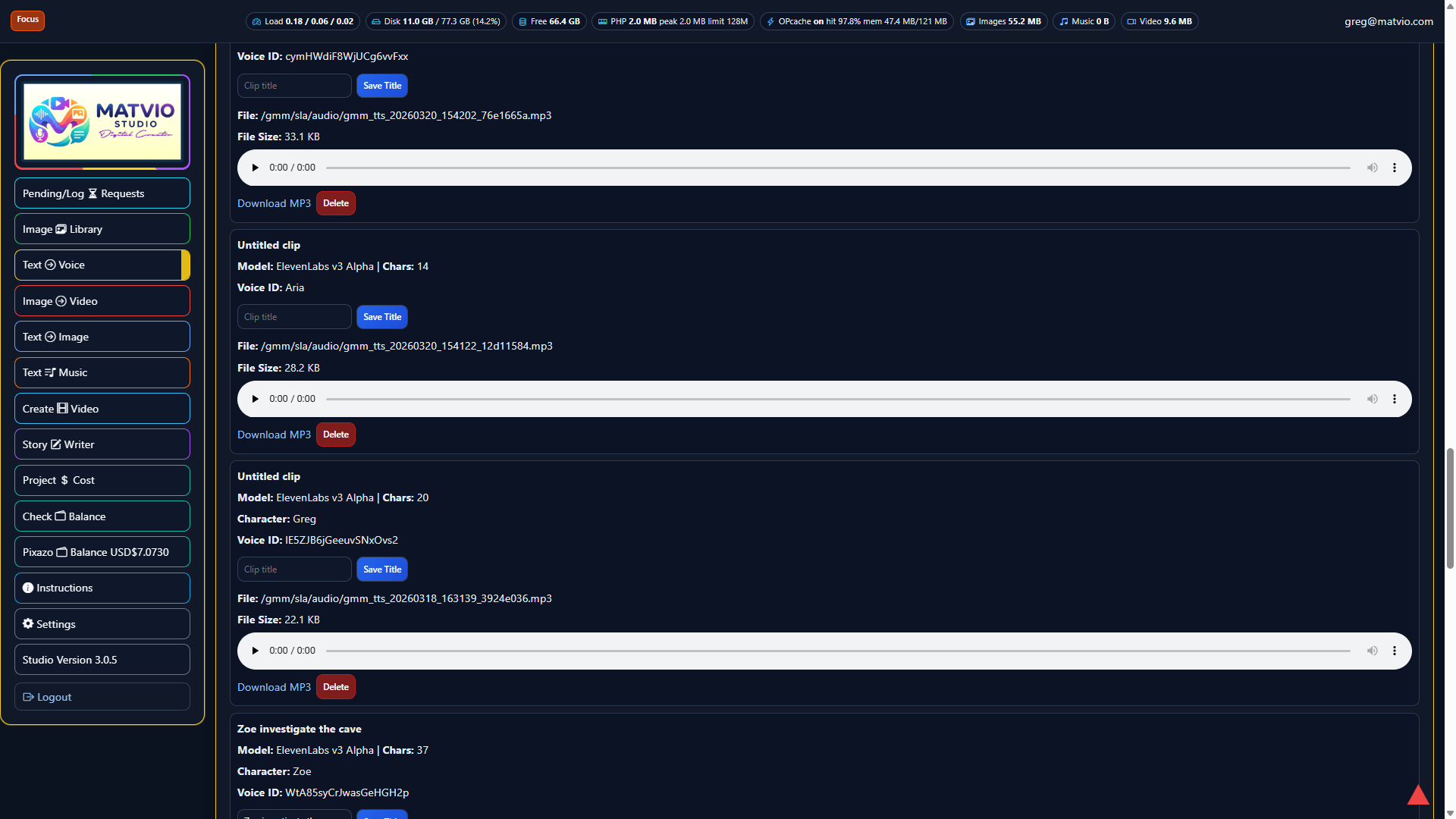
  • Saved Voices: named character profiles and generated MP3 clips.

Generate buttons

  • Use Selected Voice: copies the chosen voice into Voice ID.
  • Generate Voice & Save MP3: sends text and saves result.
  • Preview Voice / Preview Voice ID: short sample without saving a full clip.

Saved clip actions

  • Download MP3, Delete clip, Save Title, and inline playback with HTML5 audio.

Tracking: successful generations are added to the generation cost log automatically.

4) Text to Image

Open Text to Image. This area uses workspace tabs plus inner tabs.

Workspace tabs

  • Text to Image: generation + recovery forms.
  • Reference Library: upload/search/use references with pagination.
  • Prompt Library: save/search/reuse prompt snippets.

Inner tabs (Text to Image workspace)

  • Generate Image: model, title, prompt fields, reference slots, Generate & Save.
  • Recover Image: paste provider payload and recover by request ID.
  • Recover Background: recover background-removal jobs by request ID.

Library actions

  • Reference rows: Use, Download file, Delete.
  • Prompt rows: Use, Copy prompt text, Delete saved prompt.

Tracking: each run logs model, time, estimated cost, prompt, and reference summary.

5) Image to Video (Kling) + 5b) Pending/Log Requests

Open Image to Video. If jobs are pending, top controls may show Check All Unresolved and Kill All Pending Jobs.

  • Generate Video: pick source, prompt, model, duration, then submit.
  • Recover By Request ID: paste JSON payload to fetch completed jobs.
  • Saved Videos: finished files list; Delete All Videos appears when available.
  • Source image: upload disk file or use saved library image picker.
  • Generate Kling Video & Save starts rendering.
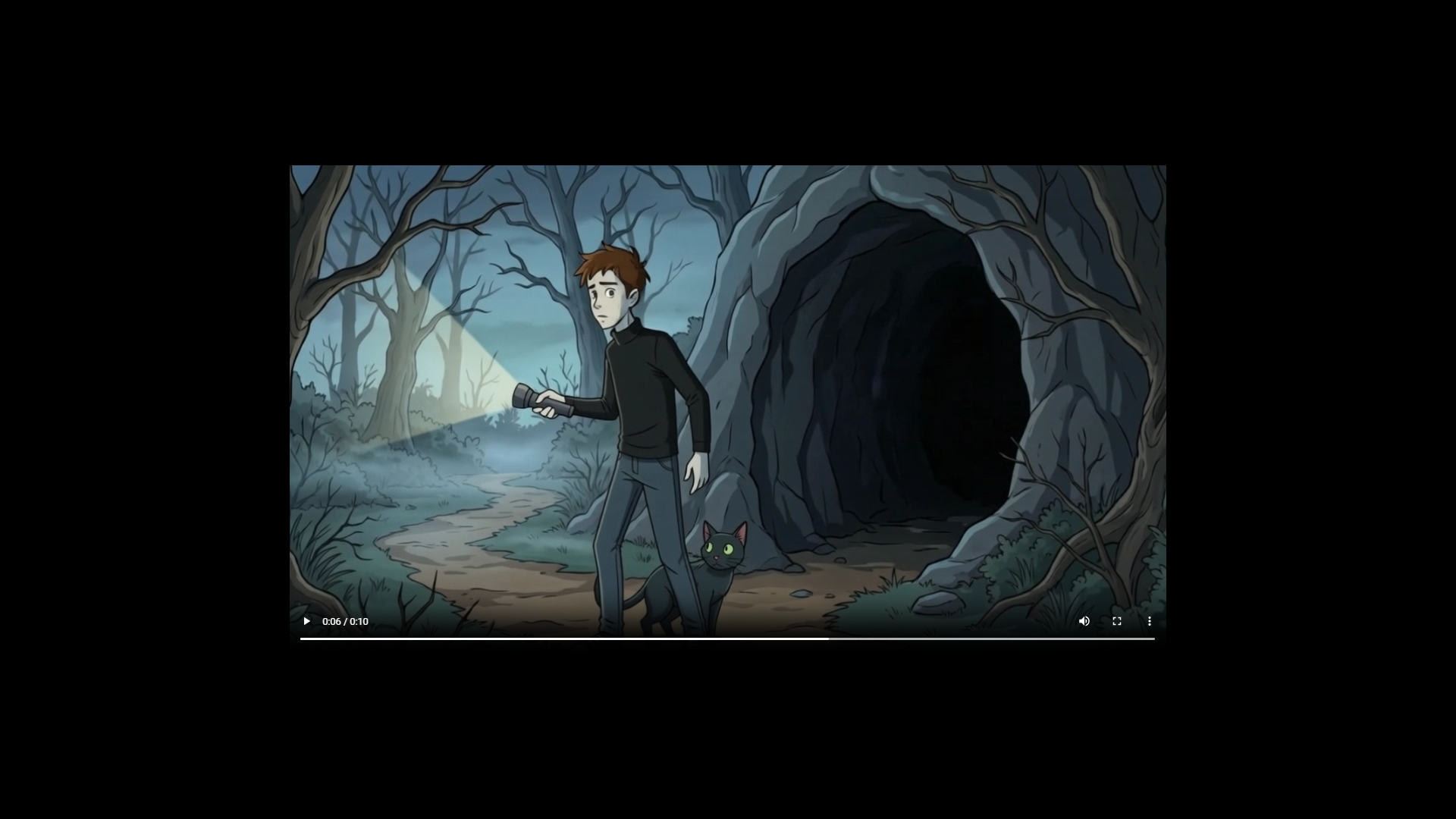
  • Saved row actions: preview, download MP4, check status, stop, delete.

Pending/Log Requests section

  • Aggregates server-side pending rows plus live client activity log.
  • Cards are labeled by workflow (Voice, Music, Image-to-Video, Remove Background).
  • Stop cancels a single pending job; Clear Logged Requests clears session log entries only.
6) Text to Music (Lyria) + 6b) Create Video Timeline + MP4

Open Text to Music (music.php).

  • Generate Music Track from form settings.
  • Recover Music By Request ID to reconnect saved provider payload.
  • Check Pending Now to poll in-progress rows.
  • Kill All Pending Jobs to stop pending music jobs (with confirmation).
  • Clear Status Log clears on-page status messages.
  • Per-track actions: Check Status, Stop, Delete.

Create Video timeline + MP4

  1. Open Create Video (video-editor.php), select project, upload timeline media.
  2. Place clips on video/audio/text tracks; set start, duration, trim, and volume.
  3. Add transitions/effects where available.
  4. Save timeline, render MP4, and monitor completion.
  5. Download finished render and file it as a production asset.
7) Image Library + Reuse

Use filters (search, folder, date range, favorites), Apply Filters, and folder chips. Create Filter saves named folders. Show Details toggles metadata; Square thumbnails forces uniform crop.

Bulk bar

  • Select all on this page for bulk actions.
  • Delete Selected removes checked images (confirm first).

Per-image actions

  • Save title, move folder, toggle favorite, animate to Image-to-Video.
  • Use in Text to Image references, copy prompt, remove background.
  • View, download, delete.
  • Use TI id labels (example: TI-12) for support and filing.
8) Project $ Cost Workflow

Use Project $ Cost during production, not only at session end.

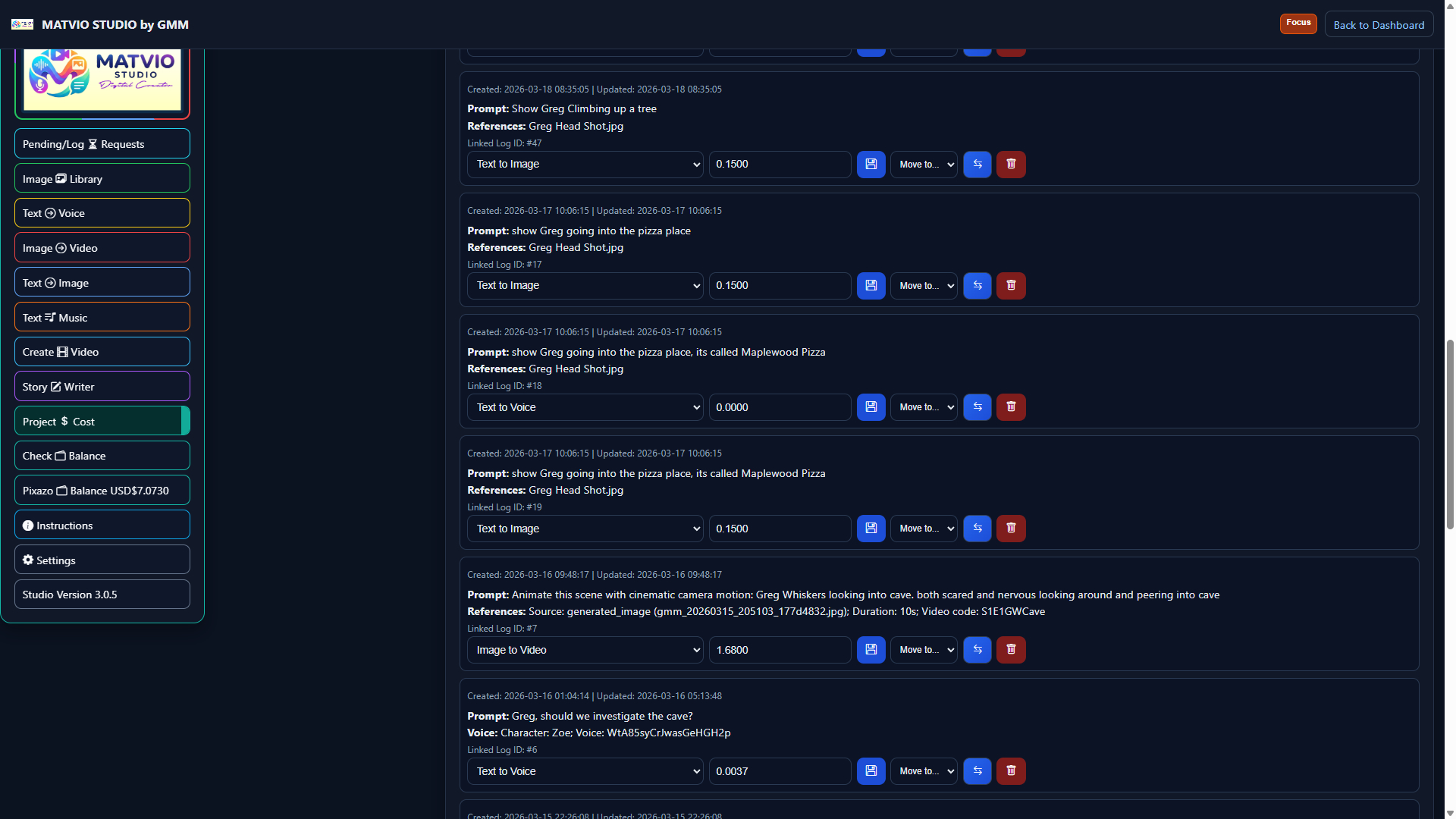
  • Create Project, Rename, project settings/logo upload.
  • Add manual cost/hours rows, Save entries, Move entries between projects.
  • Delete line/project where shown.
  • Attach Selected to link generation log rows to the active project.
  • Important: Production Hours are counted in hours totals, excluded from USD totals.
  • Use timeline ranges (7/14/30/60/90/365) for trend review.
9) Settings + Admin Tools

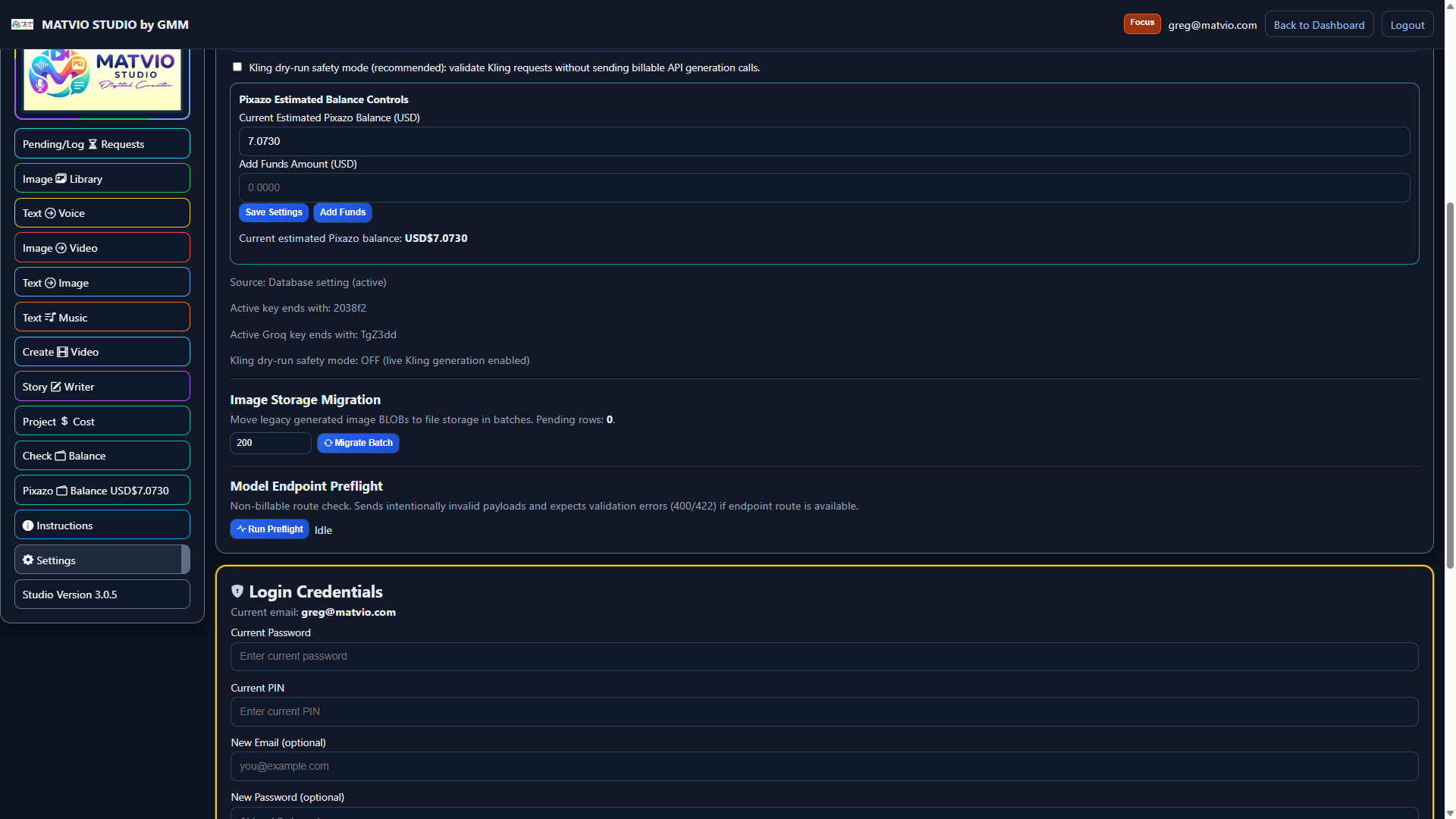
Settings (settings.php) stores API keys and maintenance tools.

  • Update keys for Pixazo, ElevenLabs, Groq, Suno, and related fields.
  • After save, run one small test generation per provider.
  • When Suno key is valid, credits should update where implemented.
  • Use image migration batch for legacy BLOB-to-file migration when needed.
  • Keep keys private and rotate any leaked credential.
10) Focus Mode

Focus mode is UI-only: reduced chrome and hidden scrollbars. It is separate from browser fullscreen (F11).

  • Click Focus in the account row on supported pages to enter.
  • Use Exit Focus in the sidebar to leave.
  • Press Esc to exit Focus mode instantly.
11) Status, Cancel, and Recovery

Rule: check first, retry second to avoid duplicate jobs and cost confusion.

  • When status is queued/processing, check status before submitting again.
  • Use cancel controls only when intentionally stopping a generation.
  • If UI loses state, recover by request ID.
  • After recovery/completion, verify output appears in the right library.
  • Attach/review generation logs so cost records match produced output.
12) Production Best Practices + System Summary

Best practices

  • Prototype with short prompts first, then scale run size.
  • Attach log rows continuously during production.
  • Archive instead of delete for projects you may revisit.
  • Standardize names: project-scene-character-v#.
  • Before deleting assets, check upcoming reference dependencies.
  • Keep one approved version and clearly label alternates.

System summary

MATVIO STUDIO is a connected production workspace for planning, generating, organizing, and cost-tracking original digital content.

  • Purpose: one place for prompt-based media generation workflows.
  • Organization: reusable libraries with file-based storage and practical naming.
  • Financial control: automatic generation logs plus project-level cost and hours tracking.
  • Capabilities: Text-to-Voice, Text-to-Image, Image-to-Video, Text-to-Music, recovery flows, and timeline export workflows.
  • For: solo creators and small teams building original digital series with repeatable workflow plus budget control.

Creators Are Scaling Faster With MATVIO STUDIO

"MATVIO STUDIO turned my scattered workflow into a full production pipeline. I save hours every week!" - Indie Creator
"Finally, a system that tracks costs and keeps all my AI assets organized. Worth every penny!" - YouTube Animator

Build Your AI Content Studio Today

No coding required - easy setup - works on standard hosting.

Download MATVIO STUDIO Now →